Series : Terminology · Part 19 of 19
- 1. What is a cookie?
- 2. What is a cache?
- 3. What is a VPN?
- 4. What is cloud computing?
- 5. What is a digital memory?
- 6. What is artificial intelligence?
- 7. What is an AI agent?
- 8. What is a token?
- 9. What is RAG?
- 10. What is an embedding?
- 11. What is two-factor authentication (2FA)?
- 12. What is a QR code?
- 13. What is a prompt?
- 14. What is an API?
- 15. What is a NAS? Your own little cloud at home!
- 16. What is cryptocurrency? And what is it for?
- 17. What Is a 3D Printer? Making Things at Home or at Work!
- 18. What is an AI hallucination?
- 19. What is a password manager?
What is a password manager?
Published
A password manager stores a different strong password for each site — you only need to remember the master password.
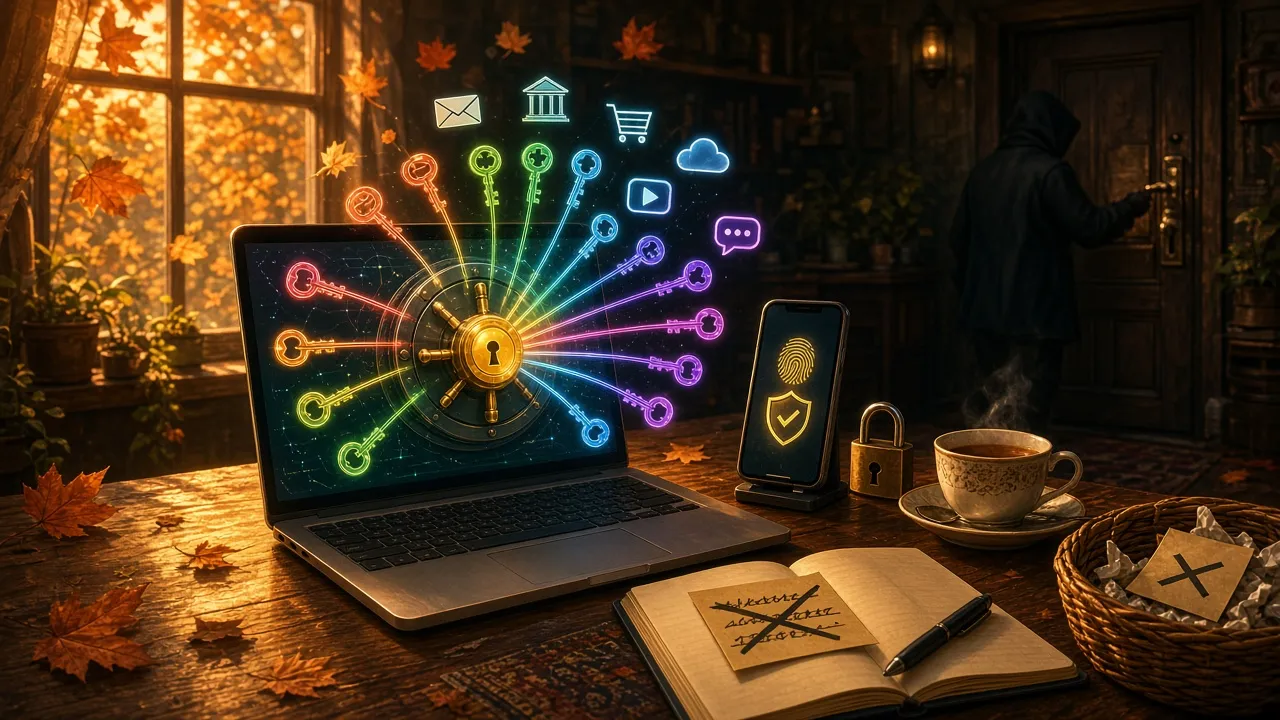
You have accounts everywhere: email, banking, shopping, social networks.
And often, the same password… or nearly the same one.
It’s convenient. But if that password ever leaks, several accounts can be at risk at once.
Fortunately, there’s a tool built exactly for that.
🔐 What is it?
A password manager is an app that keeps your passwords in a digital vault.
You remember one master password — the one that opens the vault.
For each site, the manager can:
- create a long password that’s hard to guess;
- remember it for you;
- fill it in automatically when you sign in.
You no longer have to invent “Cat123!” for the tenth time. 😄
🧠 One to remember, a different one for every site
The core idea is simple.
One master password: strong, known only to you, and truly memorized.
A different password for each site or app.
That way, if one site is breached, the others stay protected: the thief doesn’t get the key to your whole online world.
It’s a bit like having a different key for every door… and a single master key for the keyring.
✍️ Automatic generation and filling
A good password manager does two very useful everyday things.
It invents strong passwords
Instead of choosing something easy to remember (and therefore often too simple), the tool can suggest a long string of letters, numbers and symbols.
You don’t need to memorize it: the vault handles that.
It fills in forms for you
When you land on a sign-in page, the manager can offer to fill in your username and password.
On phone and computer alike, that means less retyping — and fewer frustrating typos.
📱 Sync across your devices
Most password managers can sync your vault across phone, tablet and computer.
You change a password on your laptop? It’s up to date on your phone too.
One note: sync often goes over the Internet. Pick a tool that encrypts your data — that is, makes it unreadable without your master password — before sending it.
🆘 What if I forget the master password?
This is the important question.
In many password managers, the master password cannot be recovered the way an ordinary site password can.
Often nobody — not even the company behind the tool — can get it back for you.
If you forget it and you have no backup plan, you can lose access to every password in the vault.
That’s why a recovery kit (sometimes called an emergency kit or recovery key) matters:
- a code, key or file provided by the tool;
- kept somewhere safe, off your phone (paper in a secure place, or an offline copy stored carefully);
- not inside the vault itself, and not in an email that’s easy to hack.
Take five minutes to set it up on day one. Future you will thank you.
🛡️ And two-factor authentication?
A password manager protects you well… but it isn’t magic.
Pair it with two-factor authentication (2FA): after the password, a second check (code, notification or key) confirms it’s really you.
And stay wary of fake sign-in pages: phishing is still one of the most common ways to steal a password, even a good one.
🧰 A few well-known examples
There are several password managers. Among names you often hear:
- Bitwarden
- 1Password
- Apple’s built-in Keychain (iPhone, Mac…)
- Google’s password manager (Chrome and Google account)
This is not a list of recommendations: these are simply examples so you know what people are talking about.
The best choice depends on your devices, your comfort level and what you’re willing to trust to a tool.
🍳 The simple version
A password manager is a vault for your sign-in details.
Remember this:
- One master password to memorize.
- A different, strong password for every site.
- Automatic generation and filling.
- Sync possible across devices.
- Forgotten master password: often unrecoverable — set up a recovery kit.
- Add 2FA and stay alert to phishing.
You don’t need to become a security expert to better protect your accounts. A solid vault and good habits already make a big difference.
☁️ luc.cloud — Tech, simply.