Your photos are in the cloud. Are they really backed up?
Published
Syncing is not backing up. Keep an independent copy of your photos, outside iCloud or Google Photos.
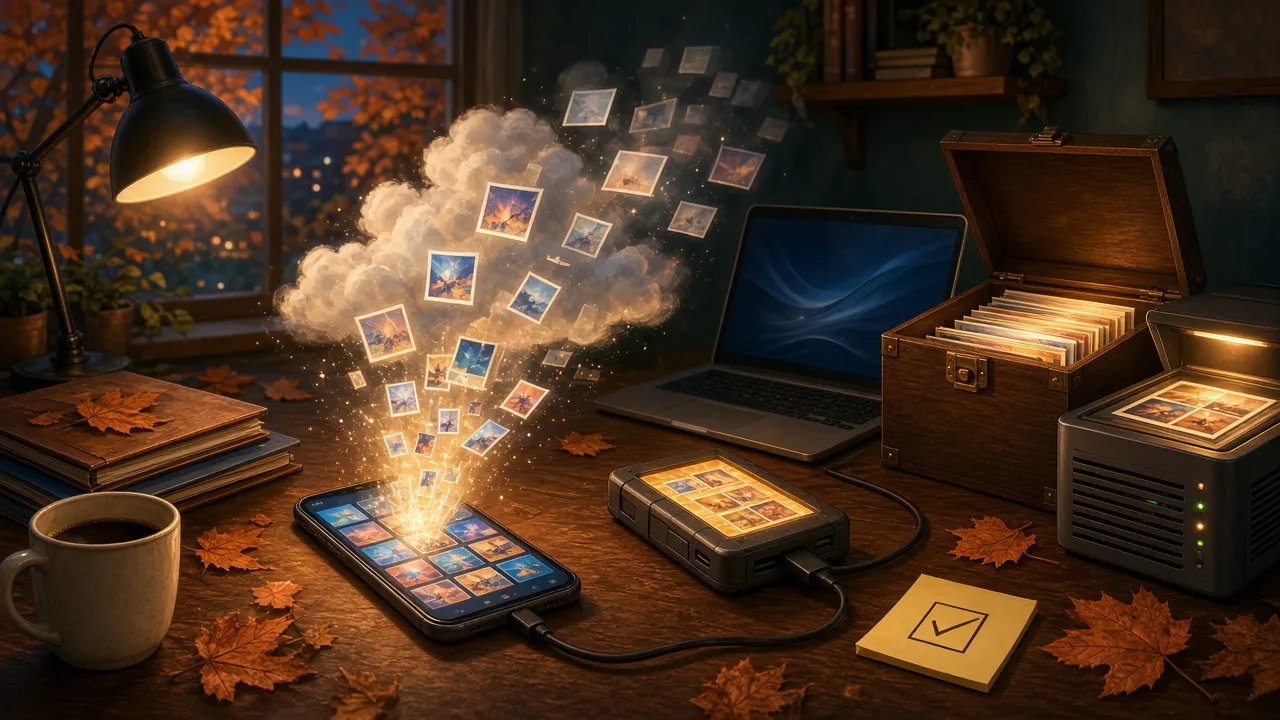
Your photos are in the cloud. Are they really backed up? 📸☁️
You take photos with your phone. They show up automatically on your tablet, your computer, and in your iCloud or Google Photos account.
You probably tell yourself: “My photos are in the cloud — they’re safe!”
But watch out: syncing your photos and backing them up are two different things.
And the good news is there are fairly simple ways to do both.
🔄 Sync or backup?
Syncing is when your devices share the same photo collection.
For example, with iCloud Photos, if you delete a photo on your iPhone, it also disappears from iCloud and from your other synced devices.
A backup is an independent copy of your photos that you still have even if they’re deleted from your phone or your cloud service.
Imagine you own two identical photo albums.
With syncing, if you remove a photo from the first album, it disappears from the second one too.
With an independent backup, the second album keeps its photo.
💾 Option 1: back up to an external drive
This is a simple and relatively inexpensive method.
You need a computer and an external hard drive or SSD.
🍎 If you use an iPhone and iCloud
On a Mac:
- Open the Photos app.
- In Photos’ iCloud settings, choose Download Originals to this Mac and wait for the download to finish.
- Select the photos you want to keep.
- From the File menu, choose Export → Export Unmodified Original.
- Save the files to a folder on your external drive.
You now have a copy of your photos that is independent of iCloud!
Important: you need to export the files into a separate folder. A photo library that stays synced with iCloud is not, on its own, an independent backup.
🤖 If you use Android and Google Photos
One approach is to use Google Takeout, Google’s export service.
- Go to takeout.google.com.
- Deselect the other services and select Google Photos.
- Request a one-time export.
- Download the archives prepared by Google.
- Unzip them and copy the photos to your external drive.
You can also use Google Takeout if you have an iPhone and use Google Photos.
Take a moment to check the exported files. Some information, such as metadata, may be provided separately.
☁️ Option 2: keep a second copy in another cloud
You can also keep your photos in two different services.
For example:
- iCloud Photos for day-to-day syncing;
- an independent backup space for a second copy.
But watch out!
Using two syncing services is not automatically a real backup.
If deletions are mirrored in both services, you could lose the same photos in both places.
So you need a solution that keeps independent copies, ideally with version history or a retention period.
A simple approach is to periodically export your photos into an archive folder that is not synced with your main photo library.
🏠 Option 3: automate with a NAS
A NAS is a small storage server you keep at home.
Some NAS devices, such as Synology’s, offer apps that can automatically copy photos from a phone.
That’s handy, because you don’t need to plug in a drive every week.
You still need to check that the setup keeps the photos even if they’re deleted from the phone.
And the NAS itself should be backed up to an external drive or to another location.
📅 How often should you back up?
It depends on how important your photos are.
- Every week: if you take a lot of important photos.
- Every month: for typical family use.
- After an important event: a trip, a wedding, a party, or a special occasion.
You can also automate your backups.
The most important thing is not to rely only on your memory to do them!
🔍 How do you know your backup works?
Here’s a quick test:
- Open your external drive or your backup space.
- Find a photo from several months ago.
- Open it to check that it’s readable.
- Make sure you can access it without going through iCloud or Google Photos.
Don’t delete an important photo from your main library just to test your backup.
A copy you can actually open and recover is much more reassuring than a simple “Backup complete” message.
🍳 The simple version
You can keep using iCloud or Google Photos to sync your photos. They’re excellent services for everyday use.
But add a second layer of protection:
- iPhone + iCloud: download the originals and export them regularly to an external drive.
- Android + Google Photos: use Google Takeout to keep an independent copy.
- To automate: consider a NAS or a backup solution that retains deleted files.
And if possible, also keep a copy in another place.
The principle is simple:
If all my photos disappeared from iCloud or Google Photos tomorrow, would I still have a copy somewhere else?
If yes, you’ve taken an important step to protect your memories.
☁️ luc.cloud — Tech, simply.